
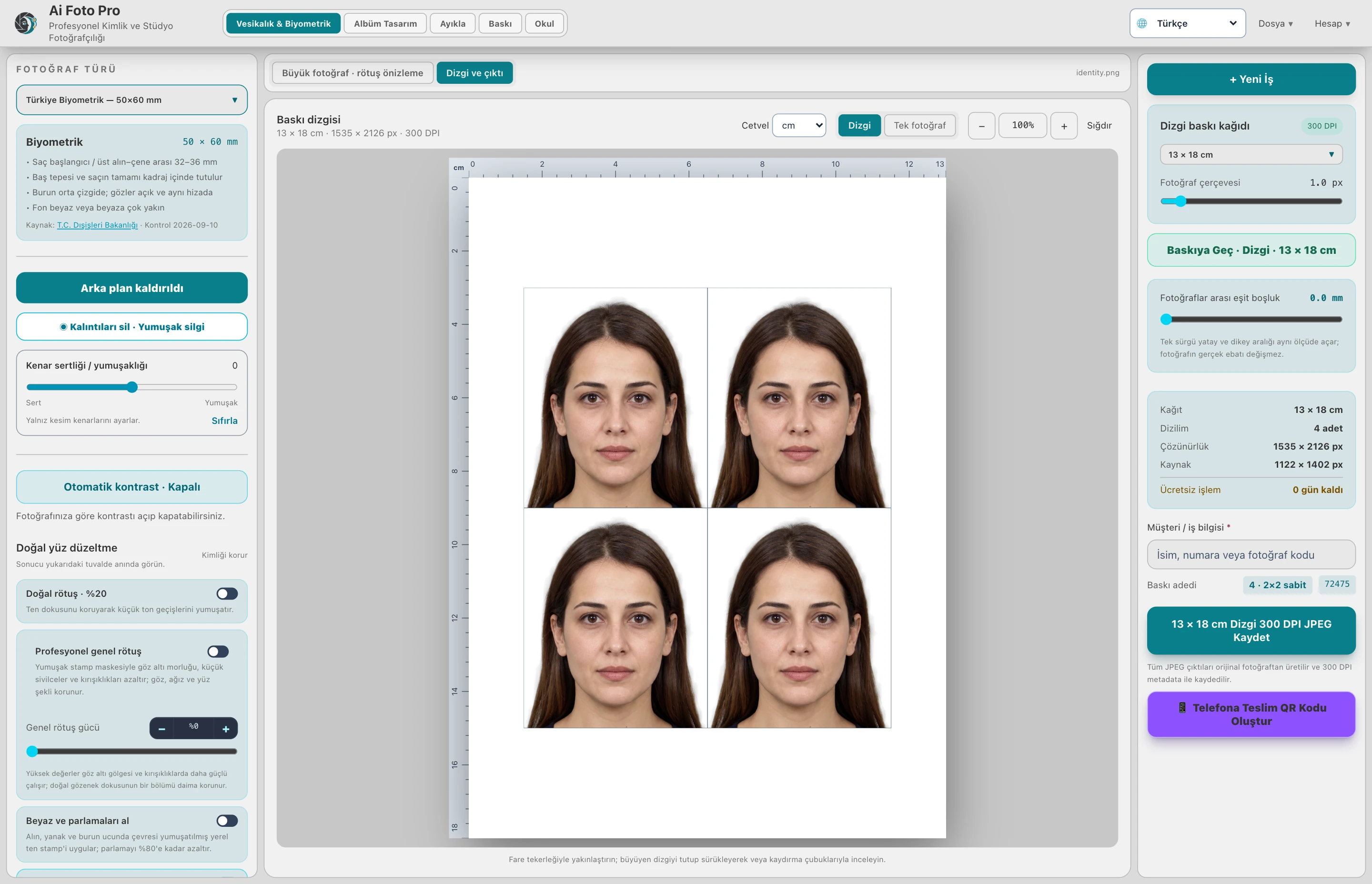
Prepare measured studio output in Ai Foto Pro, open a working copy in Photoshop for detailed editing, then review the returned result before delivery.
Start with the intended delivery
Ask what the customer needs before opening either editor. A biometric portrait, a printed ID sheet and an album frame have different dimensions and different margins for creative changes. In Ai Foto Pro, choose the appropriate mode and confirm the source photo, orientation, crop and output size. This gives you a measurable starting point. If you move to Photoshop too early, a beautiful edit may still fail the final crop or require repeated placement work.
Edit the working copy in Photoshop
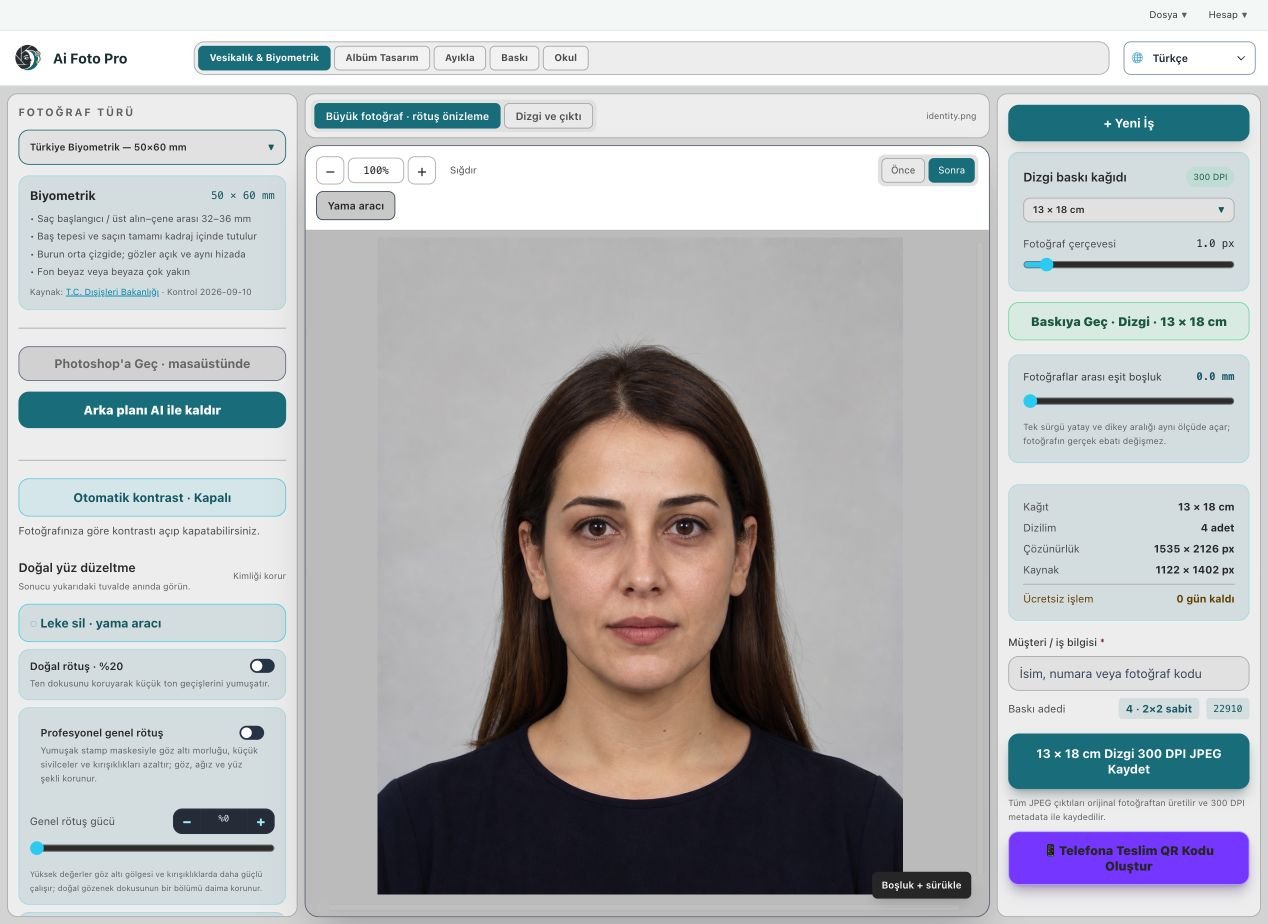
Use the Photoshop action on the portrait or selected album frame when you need a manual layer, a very small correction or a familiar brush. The application opens a separate working copy. Save back to that same file so the revised image can be picked up in the current job. Saving under a different name creates a new file that the existing link cannot automatically follow. Keep the untouched camera original available for comparison.
Return to the correct frame
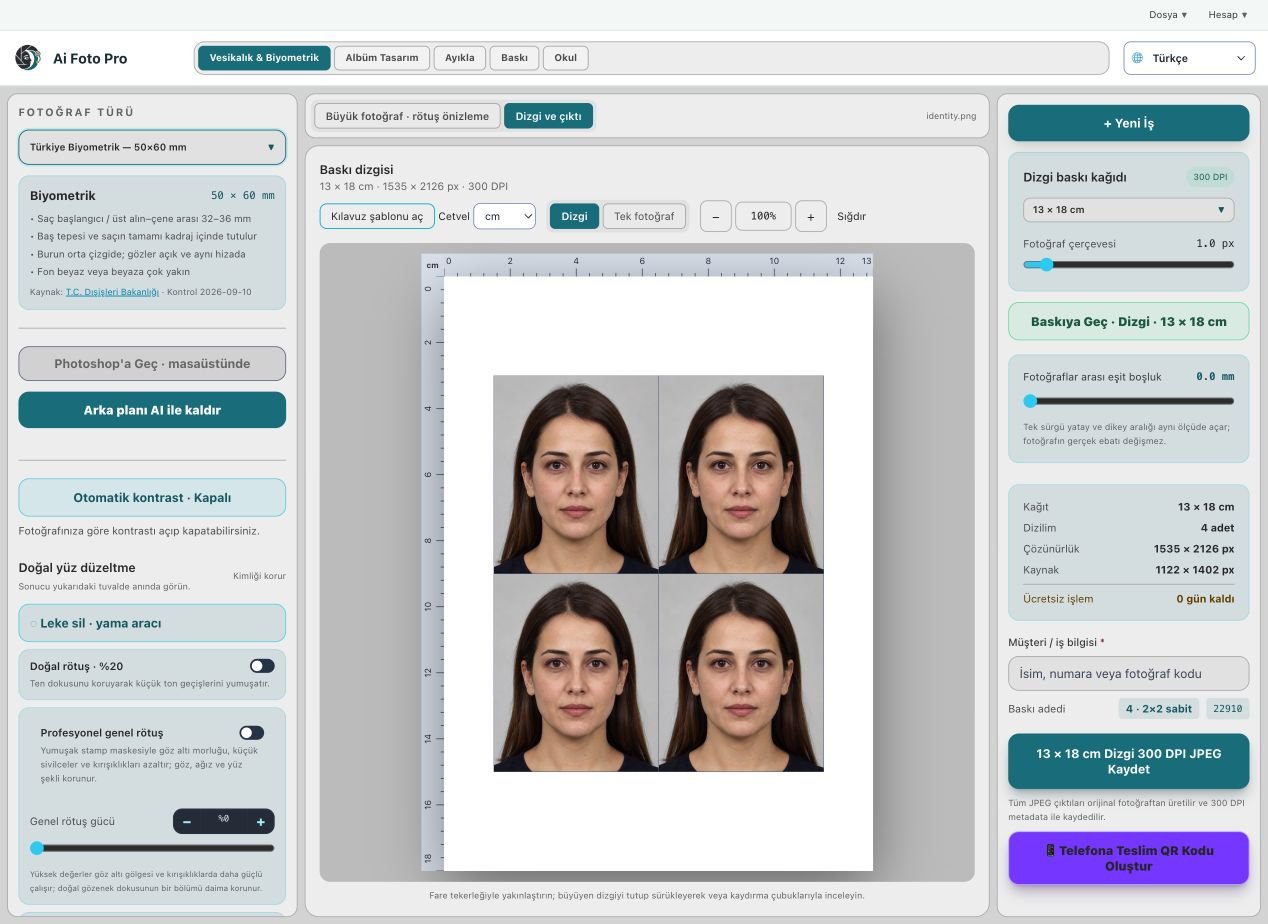
In an album, first select the photo frame you actually want to alter. The return path belongs to that selected frame, not every use of the source image across the project. This is useful when one spread needs a warmer portrait but another must remain neutral. In a biometric job, return to the large preview and recheck the hair boundary, eye line, background and chosen paper layout after the external edit.
Decide which tool should finish the job
A routine crop, gentle skin treatment, background preparation or repeated print layout usually stays faster in Ai Foto Pro. Photoshop is more appropriate for unusual pixel-level work or detailed compositing. Neither tool removes the need for a final human check. Excessive reshaping can make a document portrait unsuitable, while a tiny unchecked edge can become obvious on paper. Compare the revised copy with the original at a useful zoom before approving it.
A practical studio check before delivery
Begin with the customer’s requested product and the original camera file. In this photoshop and workflow workflow, confirm the source orientation, the intended physical or digital size, and the treatment that was actually requested. Work on a copy so the first capture remains available. Make one controlled adjustment, then compare it with the previous state. A change that looks impressive at maximum zoom can still feel wrong in the complete portrait or page. If several photos belong to one job, inspect more than one image before applying the same settings throughout the set. Keep a consistent naming scheme so the approved export can be found later.
Preview and delivered file are different checks
The application preview helps you decide where to crop or edit, but it may use fewer pixels than the source file. After saving, open the exported JPEG or page separately and confirm its dimensions, crop and visual quality. Inspect faces and important borders at normal size, then zoom into problem areas. If a detail appears soft, repeated or oddly colored, return to the working image and refine it before sending anything to the customer. A clear export check also catches an incorrect folder, a missing file or a mismatched output preset. Do not rely only on a success message.
Explain the finished result to the customer
Customers rarely ask which algorithm or brush was used. They want to know whether the result fits their purpose, still resembles them, and can be opened or printed without surprises. Tell them which output is the final version and what each file is intended for. If the task involves an official document, the receiving authority makes the final acceptance decision; check current requirements before promising compliance. Keep the original capture and the approved output separate, so a later request for a different size or a small revision does not require repeating the entire job.
Related guides
Continue with biometric framing and eye alignment, natural skin retouching, retouching photos in an album. These guides cover the neighboring decisions that often affect the same customer delivery.