School Album
Bring student portraits, classroom photos, and your school's visual identity together on the same page.
 Ai Foto Pro
MG Work Studio & Medya Ajans
Ai Foto Pro
MG Work Studio & Medya Ajans
AI FOTO PRO · PRODUCT GUIDE
Get started even without a class list. Add mixed photos or class folders after shooting; edit single photos or groups of your choice and deliver them as separate JPEG files. You don't need to shoot with a computer at school.
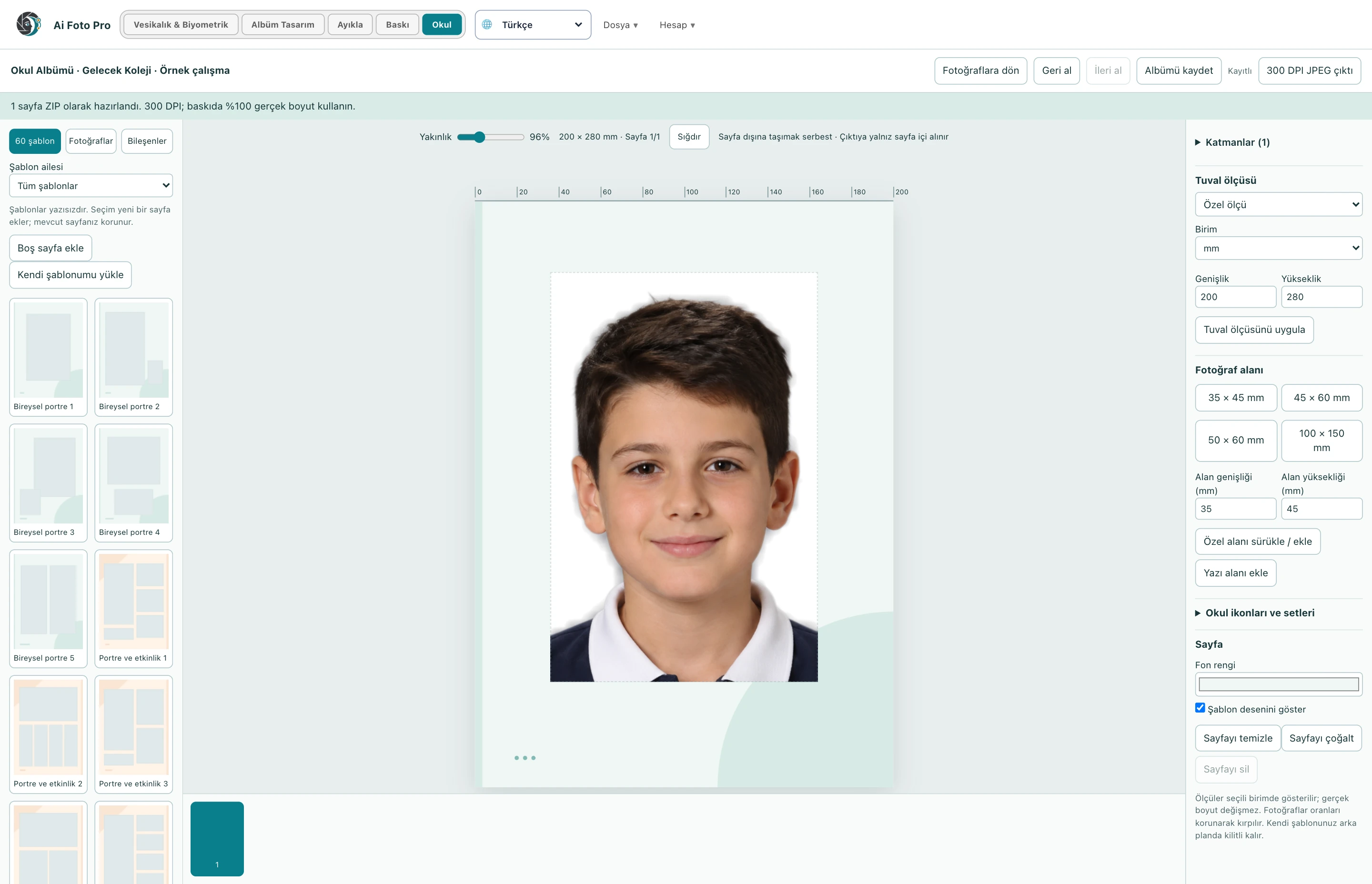
Start with single file, multiple selection or folder imports. If you shot with class folders, folder names will help you stay organized. You can classify mixed shots in the studio. The student list is optional; works with file names without a list.
Select e-School or custom printout type. You can define job-specific type name, width, height and unit. Edit the frame in each preview; clear the background and adjust the lighting. Light correction is applied to the person in the cleaned photo, and the selected background color is preserved.
Select and export photos with controlled orientation and framing. If the source path is known on the desktop, ready JPEG files are written to the HAZIR folder just outside the source folder. If old jobs do not have source path information, you select the target folder. The original photos is not altered.
You can add the student list later and match names, numbers and classes. Organizes single or sequentially numbered bulk naming delivery files. Create pages with photos of the same job in the School Album workspace. If there is a registration issue, use the re-registration or source relink tools for that photo.
Yes. You can add and edit photos individually or in bulk and save them with their own file names. The student list is optional; you can do the pairing later.
You can bulk add mixed shots as photos or import class folders. Folder names can be used as classes; you can also group photos according to your work later.
Yes. After you specify the output type or custom size, you can move and size the framing area in the preview of each photo. The rendering process uses the framing you set manually.
Light correction is applied to the person in the photo with the background cleared. The selected background color is preserved; you can balance the lighting of portraits in the same class separately.
Yes. You can manually rename a single photo or give a common name and ascending number to selected photos. For example, different suffixes such as 1, 2, 3 can be assigned to the end of the same name.
JPEG files prepared in the desktop application are saved in the HAZIR folder next to the source folder. You can select the photos to export and prepare your delivery without changing the original files.
By opening the School Album workspace within School, you can place portraits and class photos on album pages. This workspace is independent of the Album Design module.
Evaluate the right workflow for your studio based on your own photos and output needs.