Face positioning and precise cropping
Even if the photo's measurement is correct, the face may be too large, small, or close to the edge.
 Ai Foto Pro
MG Work Studio & Medya Ajans
Ai Foto Pro
MG Work Studio & Medya Ajans
AI FOTO PRO · PRODUCT GUIDE
Prepare the delivery expected by the customer for ID, passport and visa withdrawals in a single work area. Ai Foto Pro; it combines photo type, facial placement, natural retouching and print sheet in the same flow. You control the final framing and produce print and digital delivery from the same photo.
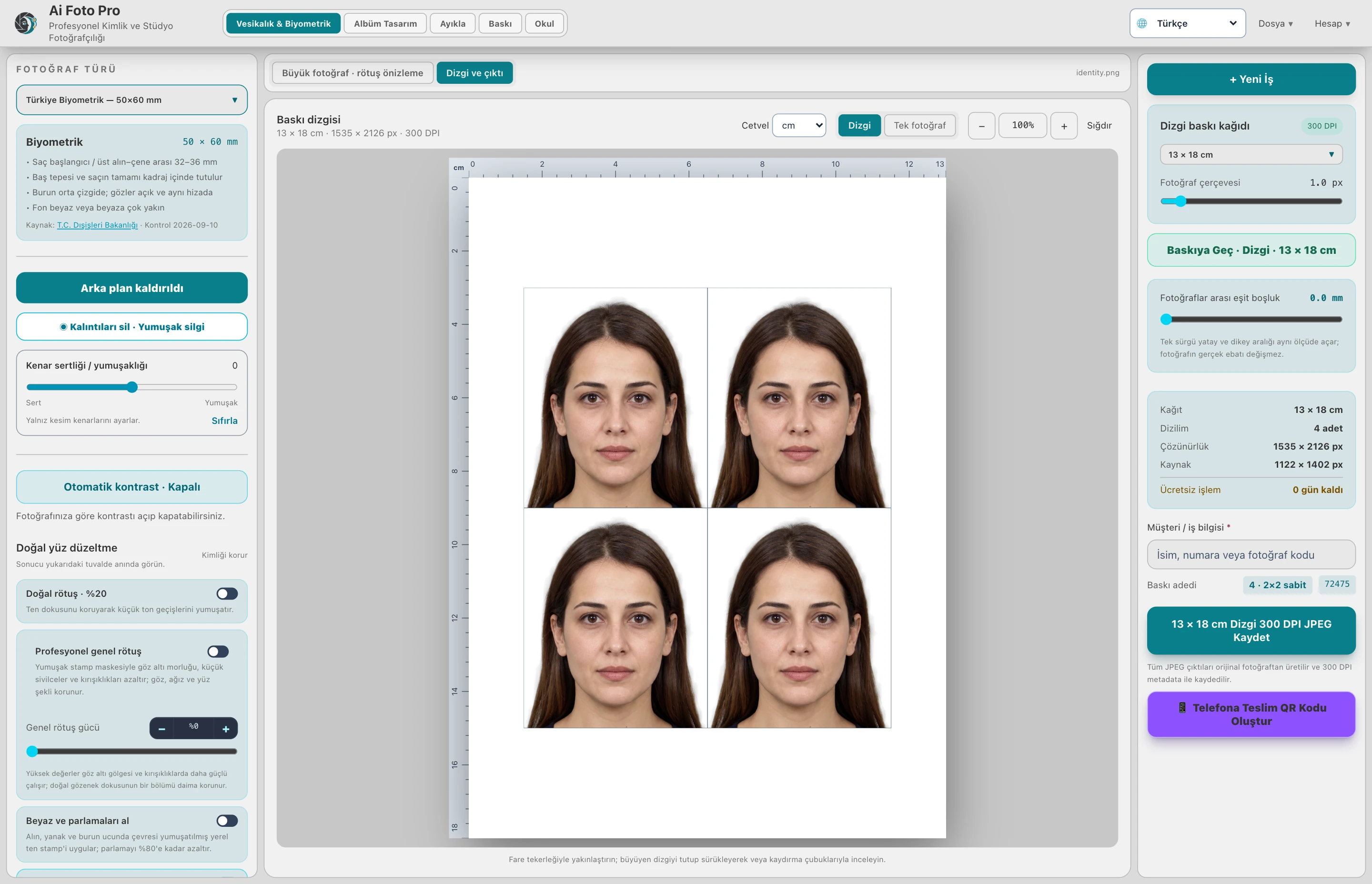
When you select the photo type suitable for the customer's application, the photo size and placement pattern are applied together. The space above the head, the position of the face, and the border of the chin are evaluated in the preview. For non-standard studio work, you can use special measurements. This way you don't have to re-establish the same settings for each customer, starting with the paper size.
Background removal, light, color and retouch controls help you prepare the photo. Compare the before and after appearance; adjust the retouching power so that skin texture and the person's distinctive features are preserved. The interventions allowed in the application photographs depend on the conditions of the relevant institution.
Arrange the selected photo size on the printing paper; adjust frame, space between photos and studio logo. The single photo used in QR delivery is produced from the photo frame in the print layout. Thus, the customer can take the composition he sees in print to his phone.
Import the photo, choose the document type and check the automatic placement. Make the necessary lighting, background and framing corrections. Examine the headspace and face position in the preview; then save the single photo or print string. The official acceptance decision belongs to the application authority.
The size of the photo type you choose and the face placement pattern are applied together. You can check headroom, face size, and chin position in the preview and edit the frame manually.
Yes. You can adjust the proximity, horizontal and vertical position and angle of the photo. The result is reflected in the single photo preview and the photos in the print sheet.
You can use background removal and natural retouch tools in the same job. You can adjust the strength of the retouch and preview hair and clothing edges, skin texture, and facial details.
Single photo output is the size of the selected photo type. Print sheet places photos in the same frame on the paper you choose. You can determine the photo size and paper size separately.
QR delivery uses the framing of a single photo in the print sheet and the measurement of the selected photo type. The customer downloads a single ready-made photo, not the entire paper. The delivery link is valid for 24 hours.
Evaluate the right workflow for your studio based on your own photos and output needs.
Explore black, grey, navy and other colours in the portrait workspace. Adjust clothing and headscarf colour, and zoom in to inspect collar and shoulder edges. Refine selected areas manually with the precise boundary tool. Photo processing takes place on your computer, and output is prepared from the original-resolution image.