Download Ai Foto Pro for Windows and Mac
Evaluate the five modes with your own photos.
 Ai Foto Pro
MG Work Studio & Medya Ajans
Ai Foto Pro
MG Work Studio & Medya Ajans
AI FOTO PRO · PRODUCT GUIDE
Know the steps from initial installation to upgrade. Choose the right operating system package, log in with your account, and start producing by completing a small job with your own photos.
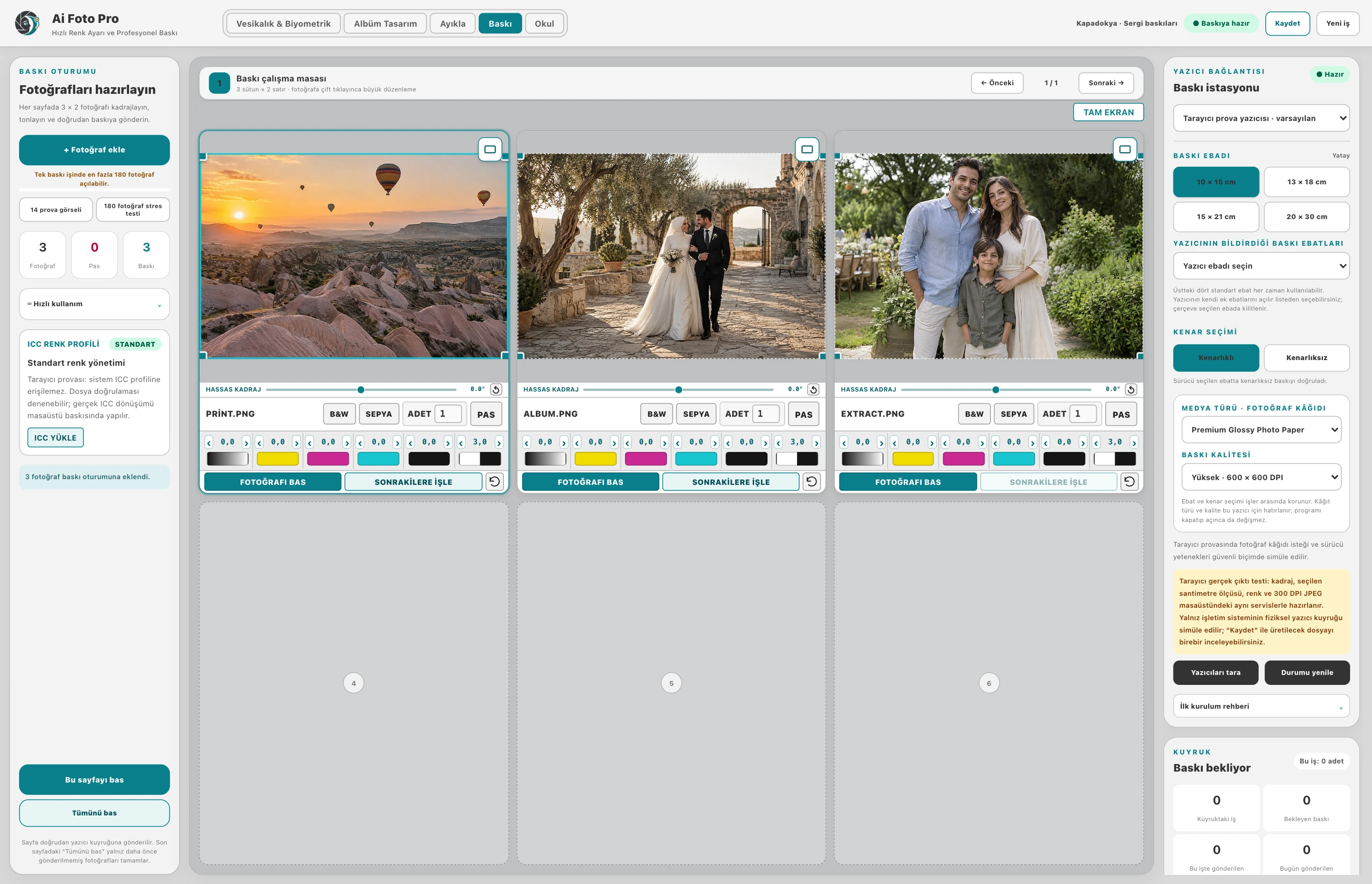
Get the Windows x64 or Mac universal package from the download page. Follow the Windows installation wizard; open the Mac app with the normal installation flow. Read the operating system's security notices and only use the official download source. Check your internet connection for account/license verification.
Start with a few photos before importing a very large shot. Check framing, orientation, background and target output size. See that the file is saved in the folder you expect. If using print mode, verify single sample printing with paper and driver settings.
Check for the update in Account → Help. The program downloads the appropriate package and starts the installation flow by verifying its signature. Don't switch without saving your work. Check that you have the released version installed to see the behavior fixed in the new version.
If there is a warning about changes that could not be saved, try saving the relevant photo again. If resource access is corrupted, relink the original photo or folder. Protect source files and job backup; closing the application does not guarantee preserving the last unsaved edits in memory.
Save your open work and backup your source photos. If there is a registry error, solve the relevant problem first.
Use the updated installation package from the official site and ask for support with the error message. Do not download random DLL files and copy them to the system folder.
Evaluate the right workflow for your studio based on your own photos and output needs.