
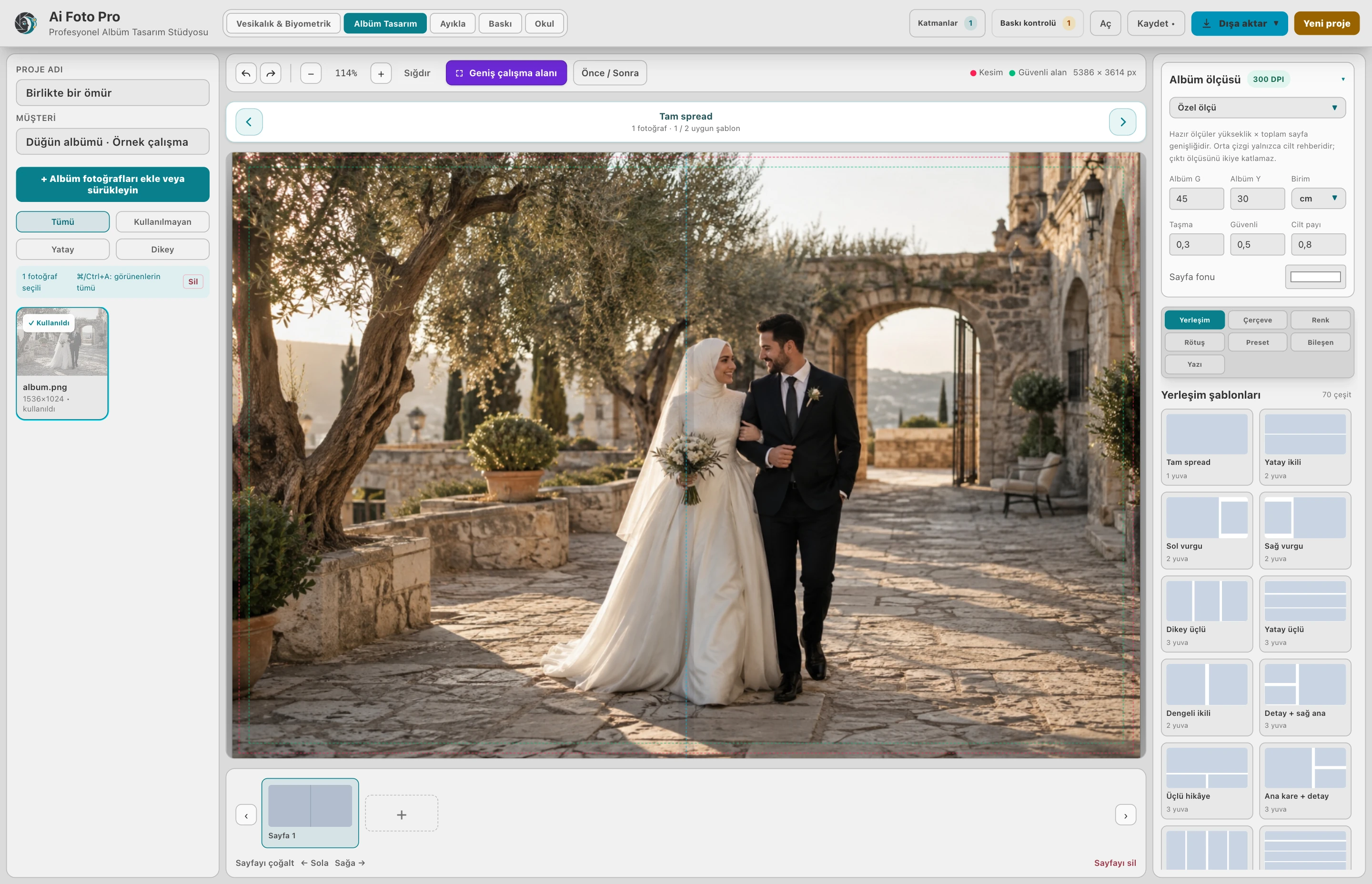
Keep skin natural and colors consistent while checking each portrait inside its album frame and across the full spread.
Establish consistency across the series
An album rarely contains a single isolated photograph. The couple may move from daylight to a warm indoor room, and the camera settings may change. Review a few neighboring images before retouching one face. Aim for a consistent skin tone and contrast across the spread rather than making each image look impressive on its own. A portrait that is too bright beside a darker scene can pull attention away from the story of the page.
Treat temporary marks carefully
Look at the face angle, light direction and available skin detail before choosing a correction. Small, temporary blemishes may be reduced, but freckles, expression and natural pores should remain. A strong blur that removes every mark also erases the texture that makes the person recognizable. At high zoom, inspect the boundary around eyes, lips, hair and jewelry. If a local correction looks stamped or repeated, undo it and use a smaller area.
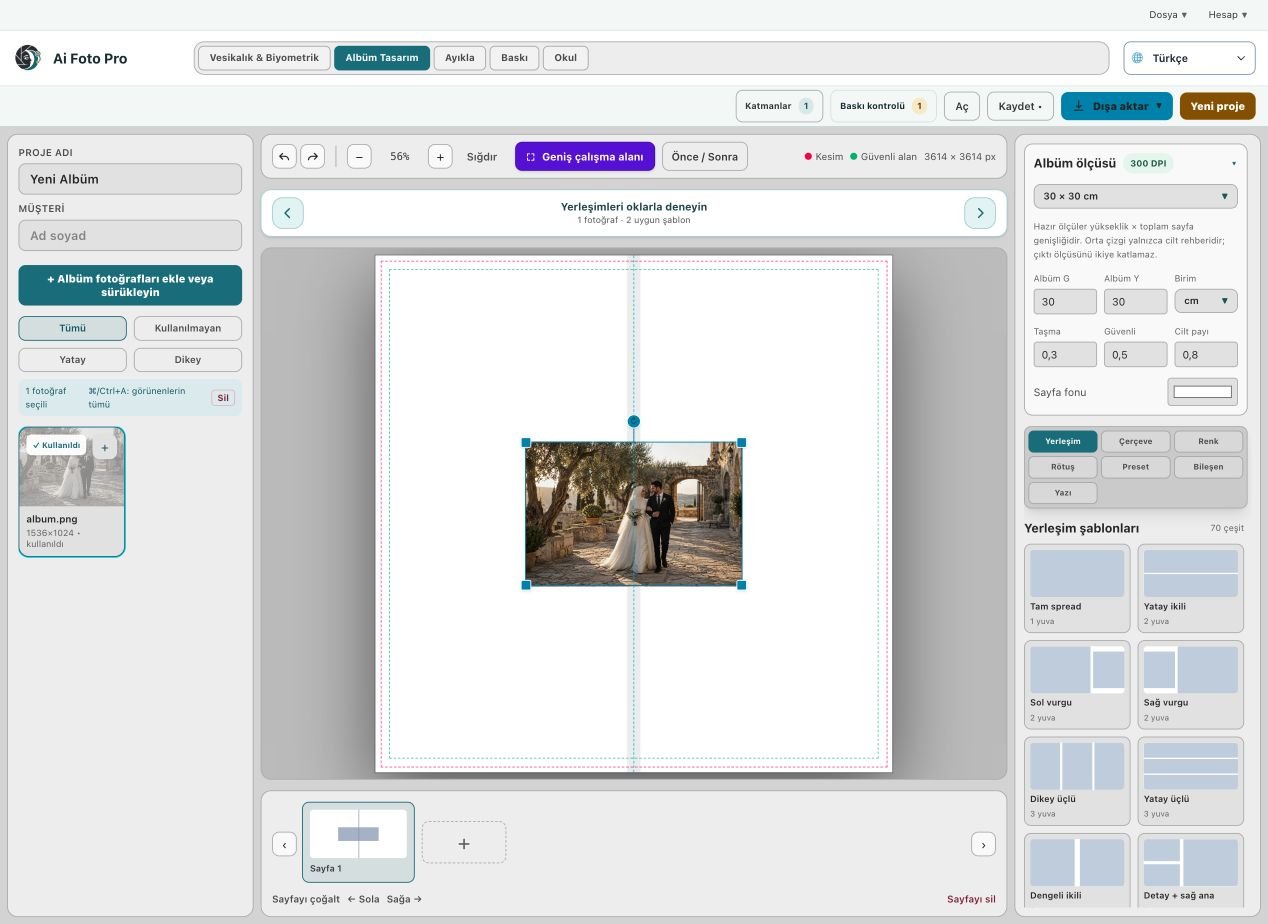
Check the frame and print margins
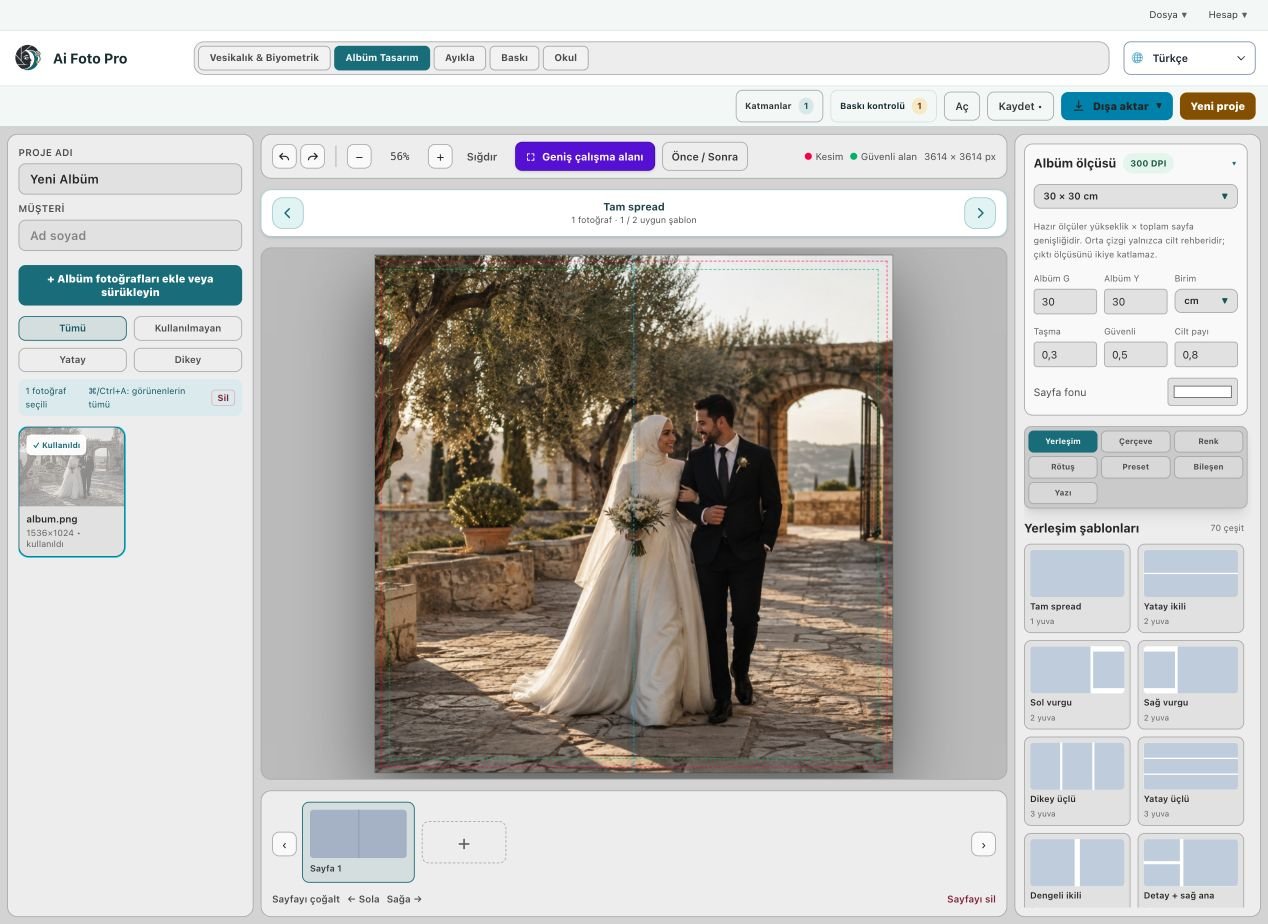
The edited photo is only one part of the album. Inspect how it sits inside the selected frame and whether the subject is too close to a trim edge or the center fold. A face that seems well placed in the source image can be cropped by a narrow layout. Compare the intended paper size, bleed and safe area before exporting. After moving or resizing a frame, look again at the actual photograph rather than relying on an old preview.
Use Photoshop only for the selected exception
When a particular frame needs complex manual work, open its working copy in Photoshop and save it back to the linked file. Keep the rest of the album unchanged. This keeps creative exceptions from changing every instance of the same source photo. Once the image returns, review the selected frame, the whole spread and the final export. Color, crop and text can all look different when the page is viewed as a complete composition.
A practical studio check before delivery
Begin with the customer’s requested product and the original camera file. In this album design workflow, confirm the source orientation, the intended physical or digital size, and the treatment that was actually requested. Work on a copy so the first capture remains available. Make one controlled adjustment, then compare it with the previous state. A change that looks impressive at maximum zoom can still feel wrong in the complete portrait or page. If several photos belong to one job, inspect more than one image before applying the same settings throughout the set. Keep a consistent naming scheme so the approved export can be found later.
Preview and delivered file are different checks
The application preview helps you decide where to crop or edit, but it may use fewer pixels than the source file. After saving, open the exported JPEG or page separately and confirm its dimensions, crop and visual quality. Inspect faces and important borders at normal size, then zoom into problem areas. If a detail appears soft, repeated or oddly colored, return to the working image and refine it before sending anything to the customer. A clear export check also catches an incorrect folder, a missing file or a mismatched output preset. Do not rely only on a success message.
Explain the finished result to the customer
Customers rarely ask which algorithm or brush was used. They want to know whether the result fits their purpose, still resembles them, and can be opened or printed without surprises. Tell them which output is the final version and what each file is intended for. If the task involves an official document, the receiving authority makes the final acceptance decision; check current requirements before promising compliance. Keep the original capture and the approved output separate, so a later request for a different size or a small revision does not require repeating the entire job.
Related guides
Continue with natural skin retouching, working with Photoshop, print preparation checks. These guides cover the neighboring decisions that often affect the same customer delivery.