School Album
Bring student portraits, classroom photos, and your school's visual identity together on the same page.
 Ai Foto Pro
MG Work Studio & Medya Ajans
Ai Foto Pro
MG Work Studio & Medya Ajans
AI FOTO PRO · PRODUCT GUIDE
Create your own design without having to start with a blank page. Ready-made layouts speed up repetitive work, while you retain final control over photo areas, text, and design elements.
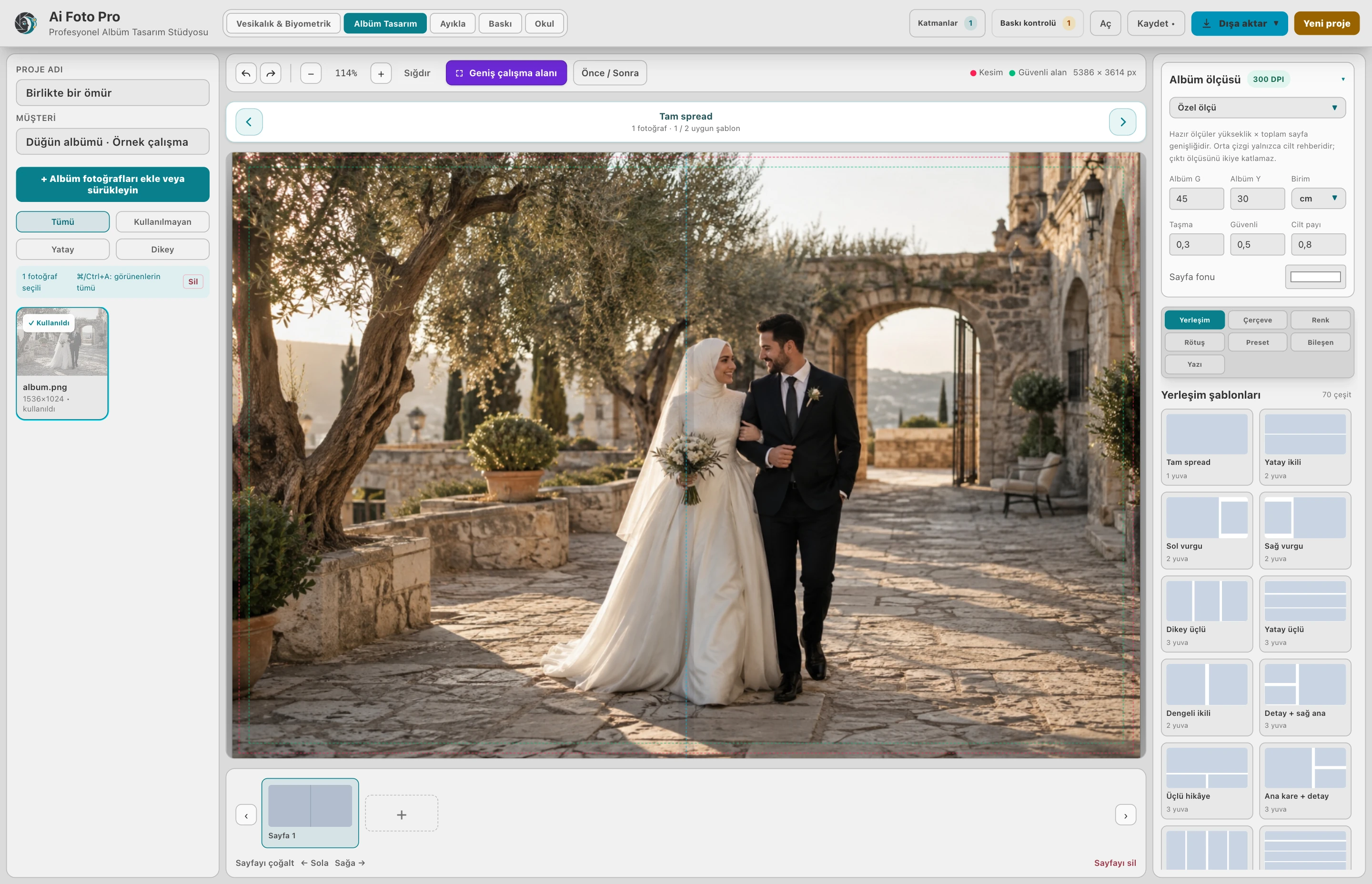
For your wedding and event album, start with a page layout that suits horizontal or vertical squares. Includes 60 no-text templates for School Album. Delete unused areas, change their dimensions or add new photo areas. Adapt the result to your shoot and the style the client wants.
School Album contains 540 component options in two-dimensional, three-dimensional and monochrome categories. These can be moved and deleted on the page. You can add your own transparent PNG icons and work with the school logo or your own decorations.
Add text space for name, date and description; select font and size. Enlarge the short text, try it in different positions and check the parts that extend beyond the page. Inspect at final size for readability in print; avoid overly thin fonts, especially in small descriptions.
Duplicating a layout decision on student pages helps maintain the same visual language throughout the album. Then edit the page with the special photo on its own. Check before batch output that the duplicated areas contain the correct photos.
School Album fields and added components can be deleted; you can create your own layout.
Yes. You can add and place your own PNG components in the School Album workspace.
Evaluate the right workflow for your studio based on your own photos and output needs.