School
Get started even without a class list.
 Ai Foto Pro
MG Work Studio & Medya Ajans
Ai Foto Pro
MG Work Studio & Medya Ajans
AI FOTO PRO · PRODUCT GUIDE
Bring student portraits, classroom photos, and your school's visual identity together on the same page. Start from a single page with the self-contained album workspace inside School mode; duplicate your layout to students of your choice.
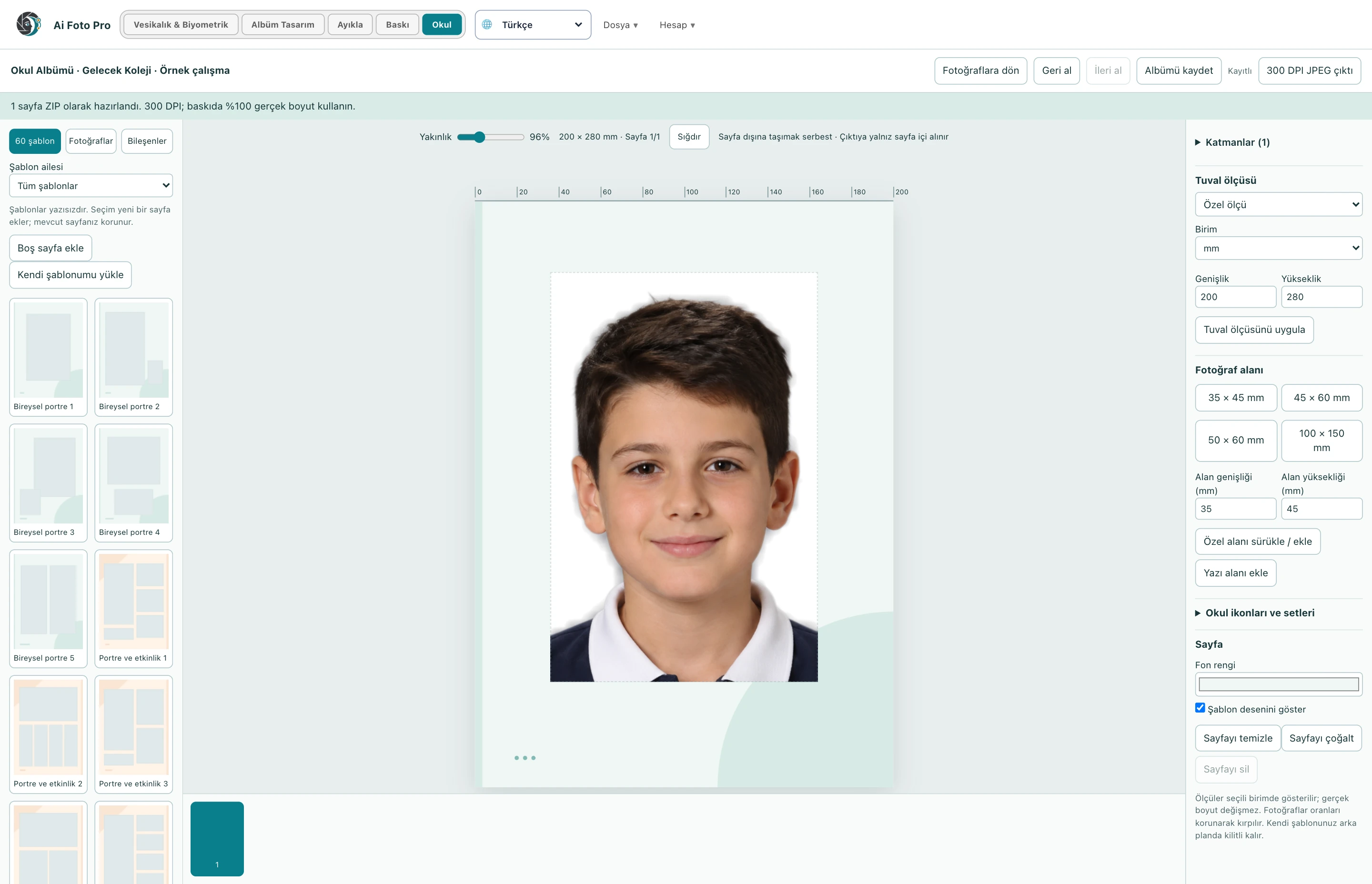
You can choose one of 60 blank templates or create a blank page in a custom size. Preset fields and components can be moved, edited and deleted. The starter template is not the final version of the design; you can change it according to the colors of the school and the age group of the students.
Add photo space to the page by specifying a passport size or custom width and height. Drop the photo into this area; edit its position within the frame by double-clicking it. Adjust the composition with the rotation and precision angle tools. The selected area determines the photo's location and visible border on the page.
Create album pages per student by selecting a target area and group of photos. Placing the common class photo on all pages and placing each student's portrait on a separate page are different processes. Check the resulting page count and photo matches before printing.
Use the 540 categorized design elements or add your own transparent PNG icons. Add text and adjust font, size and position. Delete layers, sort them; use Fit to Page to view the entire page. Areas extending beyond the page can be monitored during editing, only the inside of the page is output.
You can choose one of 60 ready-made templates or create a blank page of your own size. You can move, edit and delete preset fields.
Yes. You can add your own template image to the page and place photo areas on it. You can also add, move and delete your transparent PNG icons as separate elements.
By double-clicking on the photo, you can edit its position in the frame. You can maintain the frame's location on the page while changing the angle and proximity of the photo.
You can create pages per student by selecting a photo area and multiple student photos. You can also use the process of placing a common classroom photo on all pages.
Yes. You can change the font, size and position of the texts; you can move, sort or delete photo areas and components. You can add categorized components to your design.
The School Album workspace is within the School module. It is included with your School license; it works independently of the separate Album Design module.
Evaluate the right workflow for your studio based on your own photos and output needs.